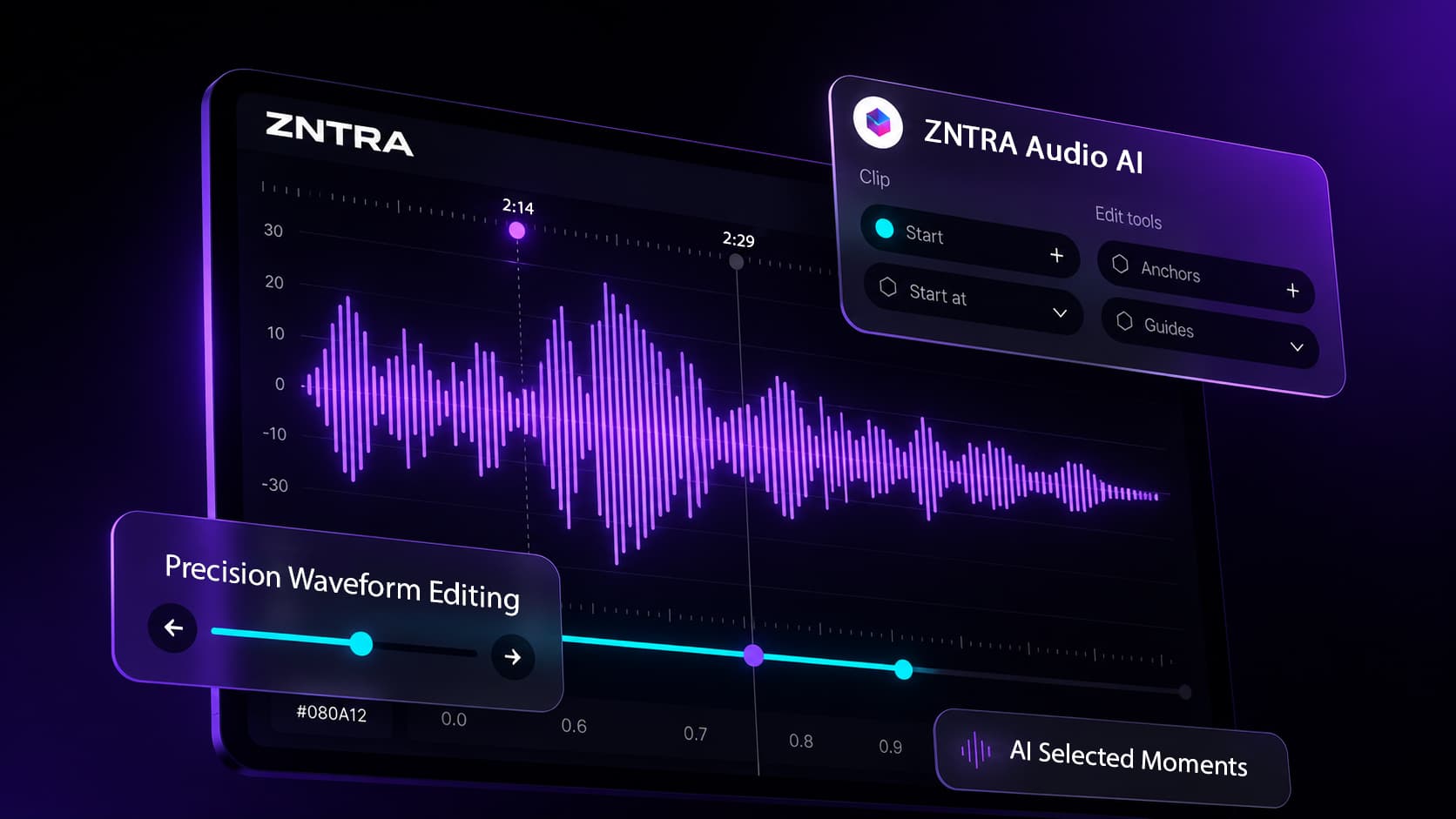
PRODUCT UPDATE
Audio AI just got smarter.
AI finds your best moments. You make them perfect.
Audio AI was built to help musicians and creators find the strongest moments in their music faster. But finding the right moment is only part of the workflow.
Sometimes a clip needs to start a little earlier, end a little later, or feel smoother before it is ready to share.
That is why we built the Precision Waveform Editor.
The best moments deserve precise editing.
AI can get you to the strongest part of a track quickly. The final cut, however, still belongs to the creator.
With the Precision Waveform Editor, Pro users can fine-tune the exact start and end of each AI-selected clip, adjust fades, zoom into the waveform, save updated versions, and export clips with more confidence.

See your music, not placeholders.
Audio AI now displays the real waveform from your uploaded track in the clip preview. Every song is different. Now every waveform is too.
This makes it easier to recognize vocals, builds, drops, transitions, and the overall energy of each clip before opening the editor or exporting.
Waveform Workspace
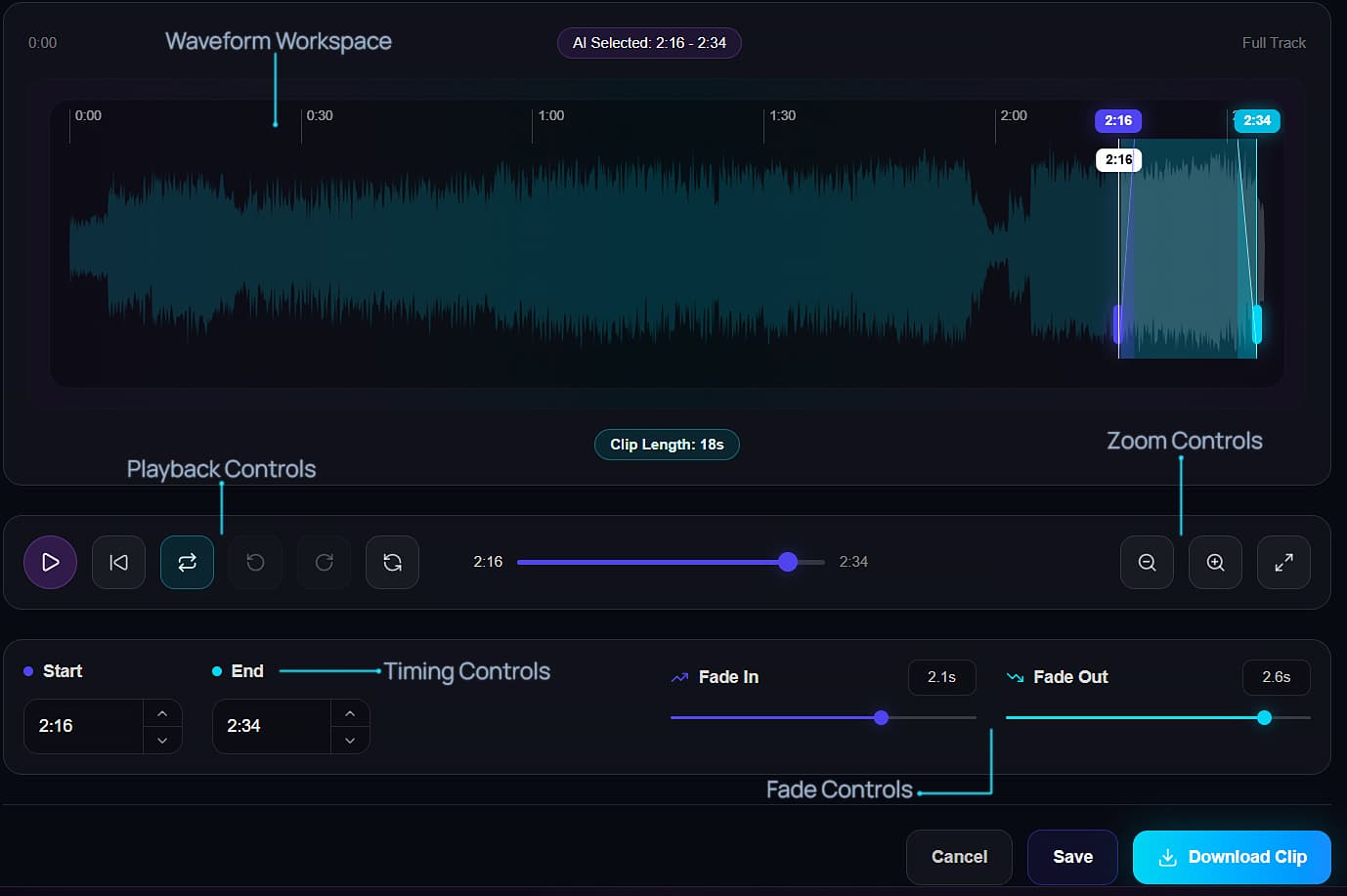
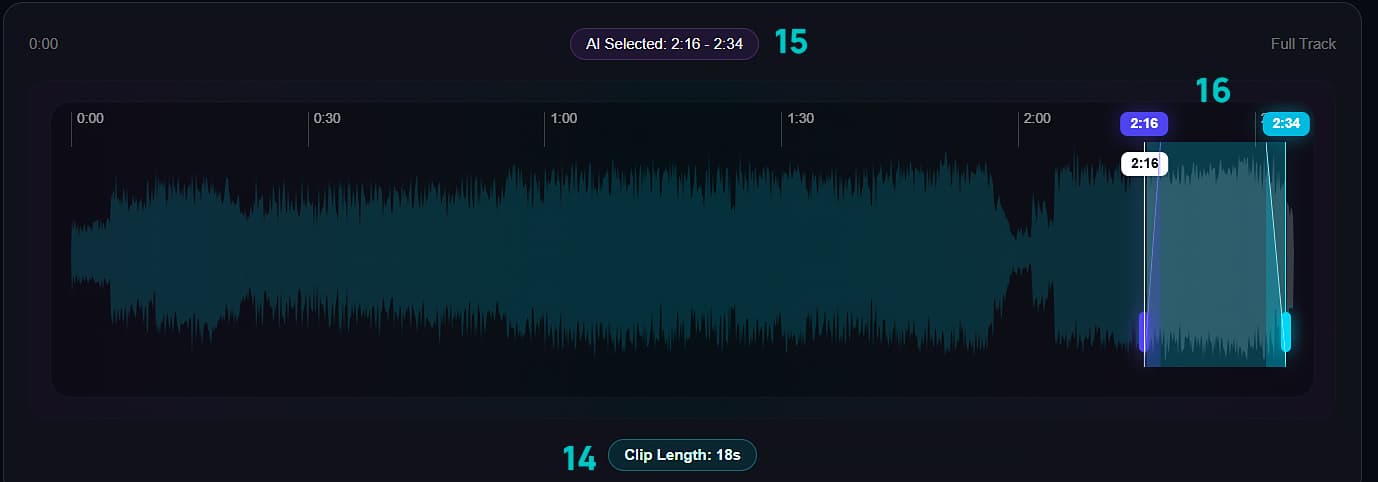
The Waveform Workspace is the main editing area. It shows the full track, the original AI selection, and the currently selected clip region.
- AI Selected shows the original timing chosen by Audio AI.
- The selected region shows the actual clip that will be saved or exported.
- The purple and cyan handles control the start and end points.
- Users can drag the start or end handles to change the clip length.
- Users can also move the entire selected region without changing its length.

Playback Controls
- Play / Pause - starts or stops playback.
- Jump to Clip Start - moves the playhead back to the beginning of the selected region.
- Loop Playback - loops the selected region until the user stops playback.
- Undo - reverts recent editing actions. Zoom changes are not included.
- Redo - restores an action that was undone.
- Return to AI Selection - returns the playhead to the original AI-selected position.
- Playback Position - shows where playback currently is inside the track. This slider is display-only and cannot be dragged.
Tip: Loop Playback is perfect for fine-tuning transitions, vocal entrances, and drops without restarting playback manually.
Timing Controls
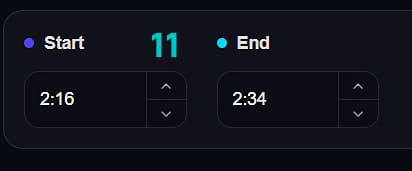
The Timing Controls let users set the exact start and end time of the selected clip.
- Start controls when the exported clip begins.
- End controls when the exported clip ends.
- These values match the selected region in the waveform.
- This gives users precise control when a clip needs to start on a word, beat, drop, or transition.
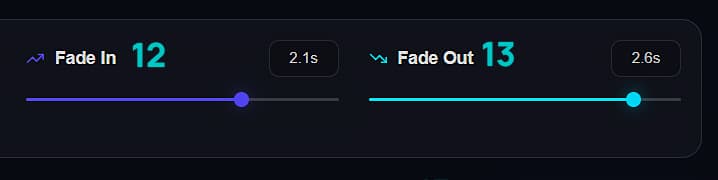
Fade Controls
Fade In and Fade Out help smooth the beginning and ending of a clip.
- Fade In can be adjusted up to 3 seconds.
- Fade Out can be adjusted up to 3 seconds.
- Visual fade indicators appear inside the selected region, making it clear where each fade begins and ends.
Tip: Use short fades when you want a cleaner start or ending without making the clip feel edited too heavily.
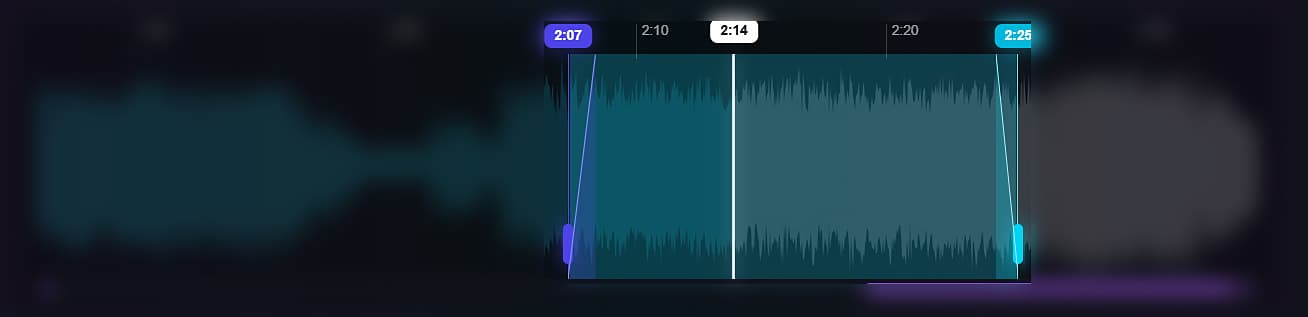
Visual Fade Indicators
The waveform displays visual fade indicators directly inside the selected region, making it easy to see exactly where each fade begins and ends before exporting.
Zoom Controls
Zoom Controls help users inspect the waveform more closely when they need maximum precision.
- Zoom In - zooms into the waveform for more detailed timing adjustments.
- Zoom Out - returns to a wider view.
- Zoom Fit - resets the waveform to the widest view so the full waveform is visible again.
Tip: Use Zoom In when adjusting around vocals, drops, transitions, or any moment where a small timing change matters.
Save and Export
Users can save edits or download the finished clip.
Saving is useful when you want to adjust several AI-selected clips, compare them, and then choose the strongest one before downloading.
- Save - saves the updated selected region for that clip. This lets users return to the main Audio AI screen, compare updated clips, and decide which version to download later.
- Download Clip - exports the current clip directly.
When should you use the Precision Waveform Editor?
Use the editor whenever an AI-selected moment is strong, but you want more control before exporting.
- Tighten the beginning of a vocal entrance.
- Move the clip closer to a chorus, drop, or hook.
- Adjust the ending so the clip feels more natural.
- Create smoother starts and endings with fades.
- Refine multiple AI suggestions before choosing the strongest clip.
- Prepare cleaner clips for TikTok, Instagram Reels, and YouTube Shorts.
Tip: AI helps you find the strongest moments faster. The Precision Waveform Editor helps you shape the final clip exactly the way you want.
Built for real creator workflows.
Audio AI is designed to save time, not remove creative control.
It helps find the strongest moments in your music. The Precision Waveform Editor gives you the final word.
Whether you are preparing clips for TikTok, Instagram Reels, YouTube Shorts, or your next release campaign, the new editor gives you more control while keeping the workflow fast.
More improvements are already on the way. Stay tuned.
Thanks for being part of ZNTRA ❤️
Create smarter music releases.